An expense tracker spreadsheet is often where people start. It is free, flexible and familiar: open Excel or Google Sheets, make a few columns, and type. Many people also stop there, usually around the third week. This guide compares spreadsheets and apps honestly, gives you a clean spreadsheet layout if you prefer sheets, and shows how to get the best of both.
What a spreadsheet does well
- Total control. Any column, any formula, any chart.
- Free. Excel, Google Sheets and LibreOffice all work.
- Great for analysis. Pivot tables and charts across years of data.
- Easy to share with an accountant or a partner who likes numbers.
- Yours forever. A file you can keep, copy and open in any program.
Where spreadsheets struggle
- Typing on a phone. Small cells, a fiddly keyboard and scrolling to the last row at a shop counter.
- Delayed entry. Most people save receipts and "update the sheet later". Later becomes never, or a guess.
- Repeat bills. Rent and subscriptions have to be typed again every month.
- Budgets. Possible with formulas, but someone has to build and maintain them.
- Sharing with family. Several people editing one sheet on phones causes mistakes and overwritten rows.
- Offline on mobile. Online sheets need a connection; offline copies can conflict.
What an expense tracker app does well
- Speed of entry: a big amount field, a category tap, done — often under ten seconds.
- Templates and recurring bills: the most common spends need almost no typing.
- Reports without formulas: monthly totals, categories and comparisons are ready.
- Budgets built in: limits per category with a clear "used" percentage.
- Sharing: family groups with each person on their own phone.
- Works offline and syncs later.
The trade-off is flexibility: an app shows the reports it was designed to show. If you want a custom chart, export your data and build it in a sheet.
A simple expense tracker spreadsheet layout
If you prefer a spreadsheet, keep it simple. One sheet for entries, one for the summary.
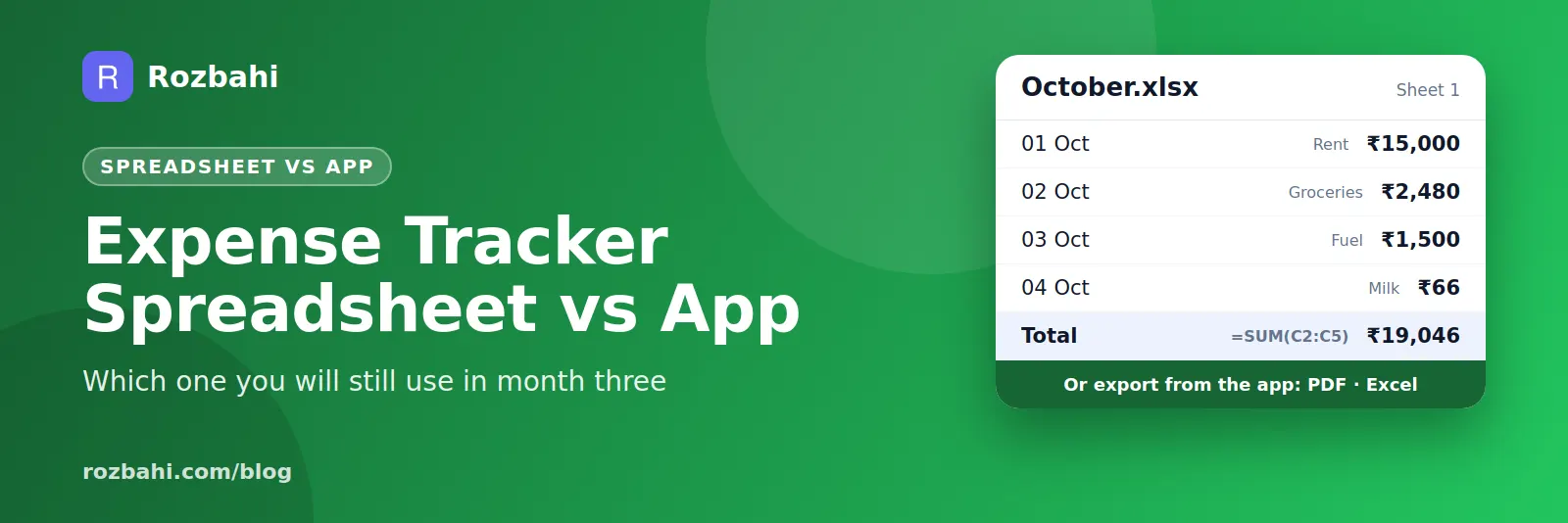
Sheet 1 — Entries, one row per expense:
- Column A: Date (format as a date)
- Column B: Category (use data validation with a fixed list)
- Column C: Amount
- Column D: Payment method (cash, UPI, card)
- Column E: Note
Sheet 2 — Summary:
- List your categories in column A.
- In column B, total each category for the month with a
SUMIFSformula that matches the category and the month's date range. - In column C, enter your budget per category; in column D, subtract to see what is left.
- Add a total row at the bottom, and a chart if you like.
Two rules make sheets last: a fixed category list (data validation), so totals add up, and entering expenses daily, not weekly.
The best of both: app for capture, spreadsheet for analysis
Many people end up with a hybrid that works well:
- Capture in an app, because it is fast on the phone and works offline.
- Review in the app each week and month, using its built-in reports and budgets.
- Export to Excel once a month or once a year for deeper analysis, tax records or custom charts.
You get the daily speed of an app without giving up the flexibility of a spreadsheet.
Which should you choose?
- Choose a spreadsheet if you mostly track on a computer, love building formulas, and track alone.
- Choose an app if you pay on the go, want to log in seconds, share with family, or have tried a spreadsheet and stopped.
- Choose both if you want quick daily capture and occasional deep analysis.
Still deciding on an app? See our expense tracker app comparison.
Moving from a spreadsheet to an app
- Match categories. Use the same category names in the app as in your sheet, so month-to-month comparisons still make sense.
- Start on the 1st. Keep old months in the sheet; start the app at the beginning of a month.
- Set up recurring bills and templates on day one.
- Keep the sheet as an archive. You do not need to import years of history to start well.
A side-by-side comparison
- Adding an expense on a phone: spreadsheet 30–60 seconds; app 5–10 seconds.
- Recurring bills: spreadsheet — retype or copy each month; app — set once.
- Budgets: spreadsheet — build with formulas; app — built in.
- Reports: spreadsheet — unlimited, but you build them; app — ready-made monthly reports.
- Family sharing: spreadsheet — one shared file, easy to break; app — each person on their own phone.
- Offline: spreadsheet — depends on the app and settings; offline-first apps — always.
- Custom analysis: spreadsheet — best in class; app — export when you need it.
- Cost: both can be free.
Why spreadsheet trackers are abandoned
Ask people who stopped using an expense spreadsheet why, and the answers are remarkably similar. They fell behind, the backlog of receipts grew, and catching up felt like a chore. Or a formula broke and nobody fixed it. Or a family member typed in the wrong column. None of these are failures of the spreadsheet itself; they are failures of friction. The faster and more forgiving the capture step, the longer a habit lasts.
Spreadsheet tips if you stay with sheets
- Freeze the header row and sort by date so the newest entries are easy to reach.
- Use a form (for example a simple online form that writes to your sheet) to make phone entry faster.
- Lock formula cells so they cannot be overwritten by accident.
- Start a new tab each year to keep the file fast.
- Back up the file — a deleted or corrupted sheet can mean years of lost history.
The bottom line
Spreadsheets are excellent for analysis; apps are excellent for capture. If you have tried a spreadsheet and fallen behind, the problem was probably the phone, not you. Capture in an app, keep the sheet for the big picture, and you get the strengths of both without the weaknesses of either.
If you are unsure where to start, start with an app for one month. You will know quickly whether fast capture changes your habit, and you can always export the data to a spreadsheet later.
How to do this in Rozbahi
- Capture in seconds in Rozbahi with quick add, templates and recurring bills.
- Budgets and reports are built in: category limits, monthly totals, spending by day, top shops, daily average and change from last month.
- Export to PDF or Excel when you want a spreadsheet for analysis or records. Export is part of Plus, which you can also unlock by inviting a friend.
- Share with family through a group instead of a shared sheet.
Frequently asked questions
Is Excel good for tracking expenses?
Yes, especially on a computer. It is less convenient on a phone, which is where most spending happens. Many people capture in an app and export to Excel for analysis.
Is there a free expense tracker spreadsheet template?
You can build one in minutes with the layout above: an entries sheet with date, category, amount, method and note, and a summary sheet using SUMIFS per category.
Can I use Google Sheets on my phone to track expenses?
You can, but small cells and scrolling make it slow. If you find yourself delaying entries, try an app for capture.
Try the fast way to capture: download Rozbahi.
Go deeper: Guide: how to track daily expenses · Feature: daily expense tracker